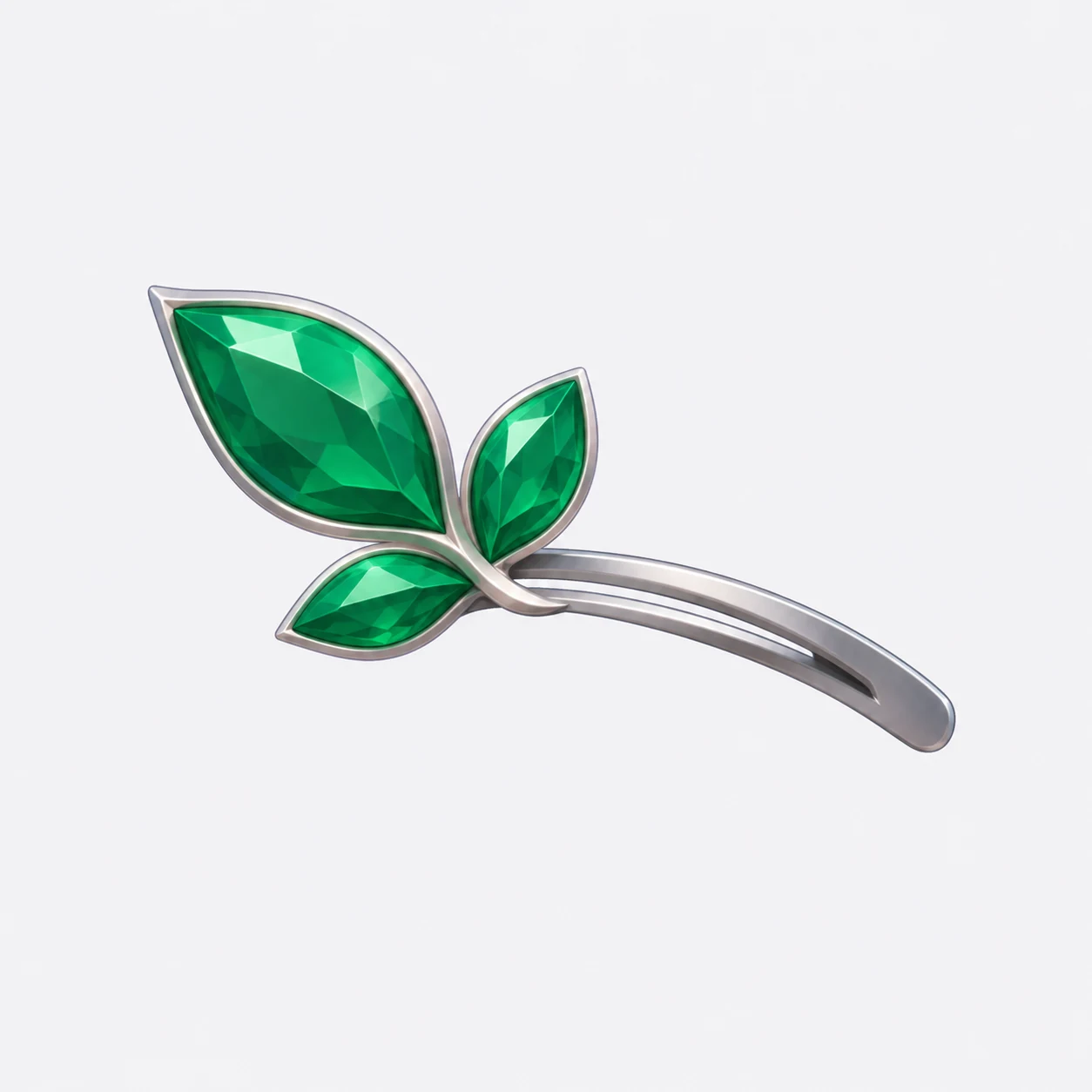
Choose the visual direction
Refine an emerald leaf silhouette on a silver base before generating geometry. Roblox UGC Creator makes the concept a deliberate checkpoint, so the model starts from a direction you can see.
Open Accessory StudioTurn an idea into a 3D accessory you can inspect. Roblox UGC Creator combines concept design, textured models, R6 fitting, and GLB exports, with handoff files for your next step.
Follow a real emerald leaf accessory with a silver base through Roblox UGC Creator. Compare its concept with front and rear fitting views from the same tested local workflow.
Refine an emerald leaf silhouette on a silver base before generating geometry. Roblox UGC Creator makes the concept a deliberate checkpoint, so the model starts from a direction you can see.
Open Accessory Studio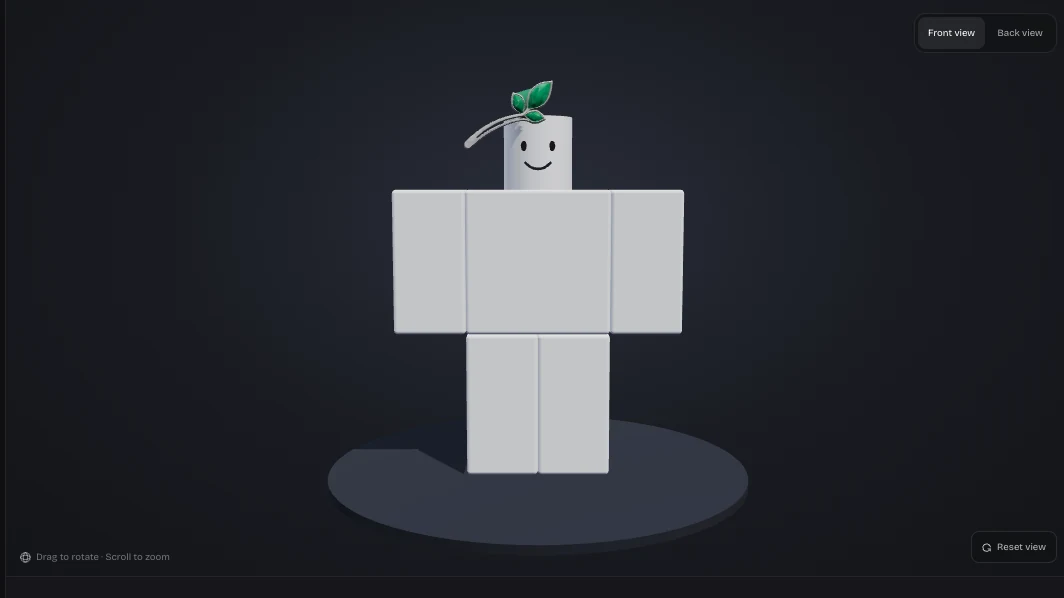
Check scale and placement in context. In this UGC creator, Roblox designers can inspect the accessory from different angles, revealing when a good standalone shape needs another position on the avatar.
Open Accessory Studio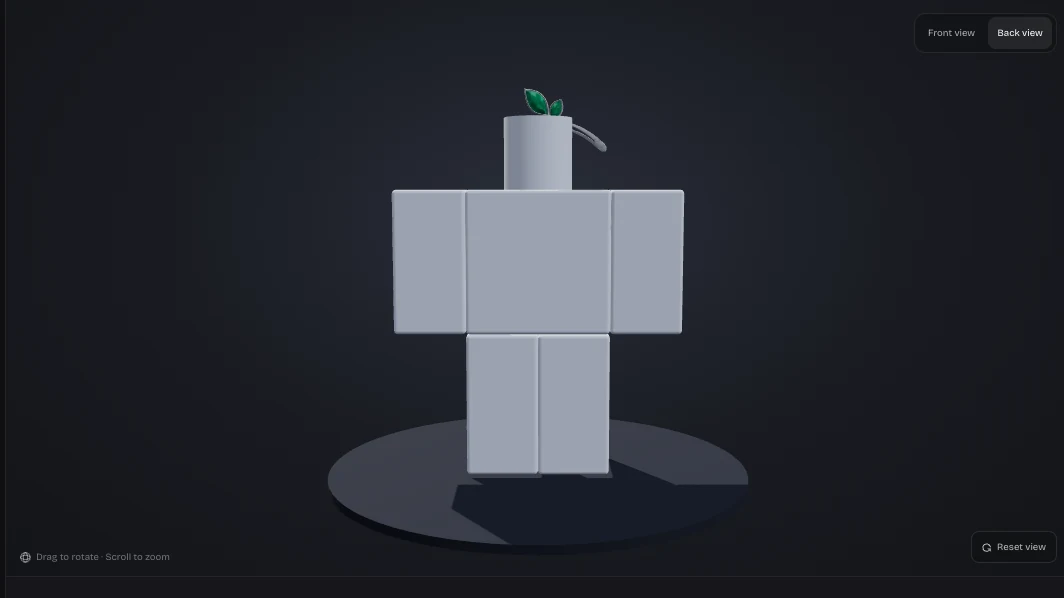
Rotate the R6 stage to inspect the same fitted accessory from behind. Roblox UGC Creator lets you review its silhouette and placement before exporting for your own Studio checks.
Open Accessory StudioStart Roblox UGC Creator with text or an image. Refine a concept, then choose the direction you want to turn into geometry.
Generate a textured model. With this UGC creator, Roblox designers can inspect its geometry before committing to the next stage.
Position, rotate, and scale the accessory on an R6 avatar in Roblox UGC Creator. Download the fitted GLB or Studio package.
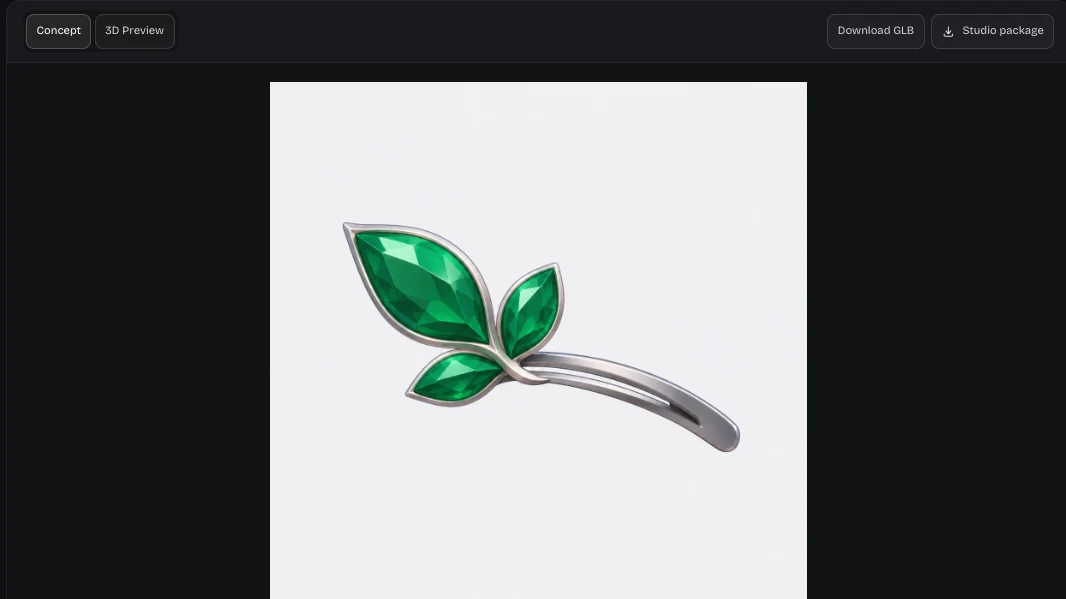
A crown or headpiece starts with a clear silhouette. Roblox UGC Creator lets you revise an image concept first, giving you a concrete direction before spending credits on a textured 3D model.
Open Accessory Studio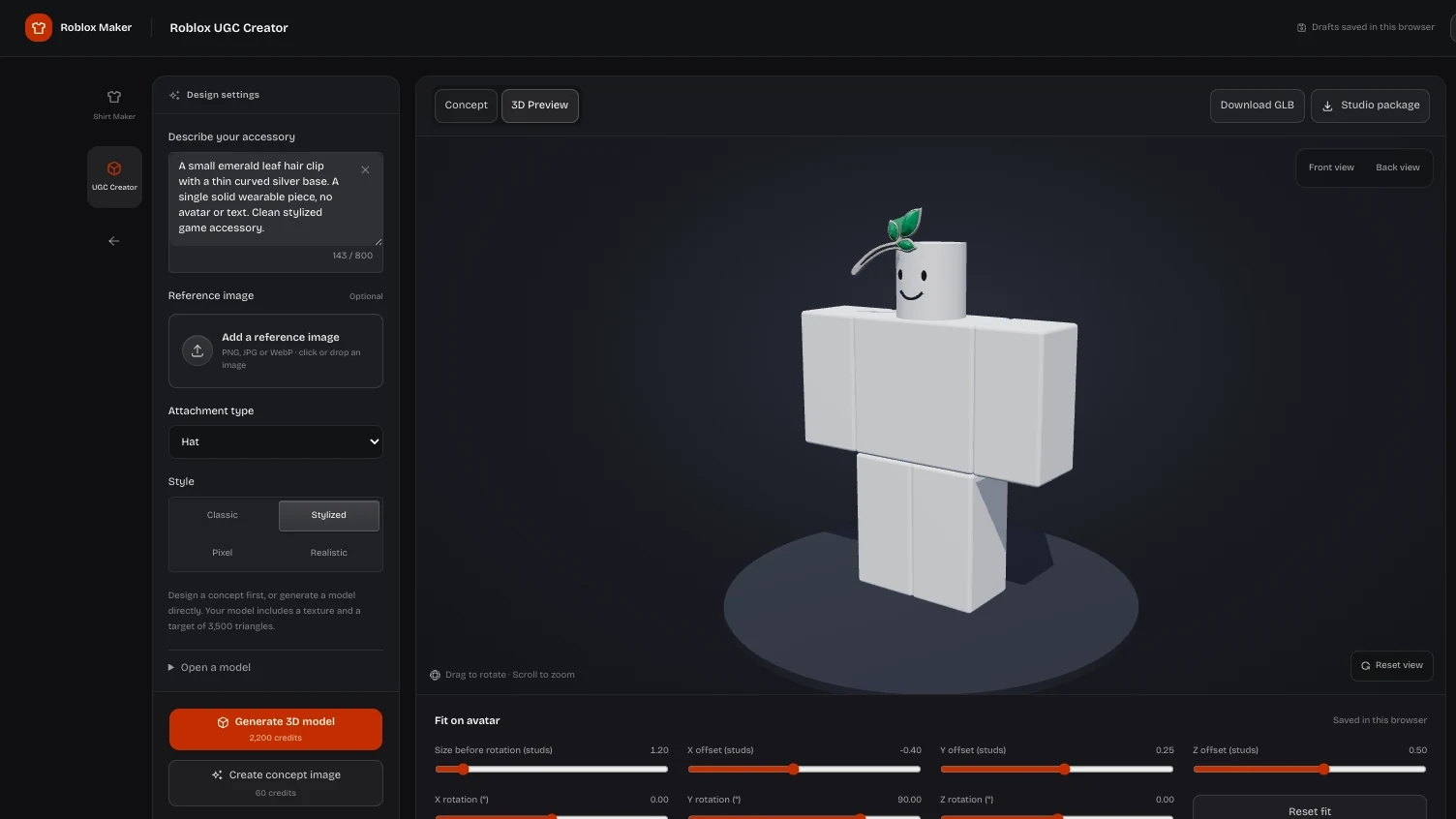
Supply a sketch when words leave too much open. In this UGC creator, Roblox artists can inspect their visual direction as a concept before turning it into a textured model.
Open Accessory StudioRoblox UGC Creator provides an R6 stage with attachment targets, position, rotation, and uniform scale. Inspect front and back while fitting, so a promising shape becomes a better starting point for Studio.
Open Accessory Studio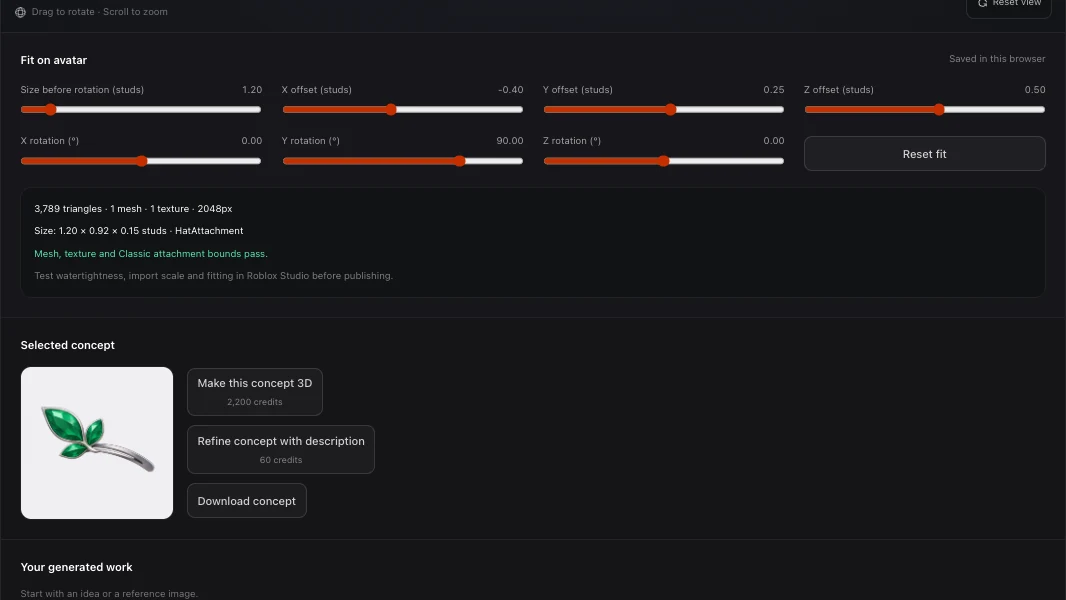
Inspect triangle, mesh, and texture statistics before exporting. With this UGC creator, Roblox designers see the model’s complexity alongside fitted GLB and Studio package downloads, keeping the next editing step clear.
Open Accessory StudioRoblox UGC Creator separates concepts, fitted geometry, and Studio handoff files. Pick the checkpoint you need without confusing an image with a finished accessory.
Save your chosen visual direction. In this UGC creator, Roblox artists can clarify shape and materials with concept revisions before generating geometry.
Export textured geometry with your fitting adjustments. Roblox UGC Creator provides a model for further editing, rather than an image of the preview stage.
Keep the fitted glTF and instructions together. Use Roblox UGC Creator for preparation, then validate import, attachments, and wearing behavior inside Roblox Studio.
With this UGC creator, Roblox designers inspect each checkpoint: explore the concept, review its geometry, and keep useful files together for the next editing step.
Refine your silhouette before creating the mesh. Roblox UGC Creator separates concept revisions from 3D generation, helping you choose a visual direction with a smaller credit cost.
Move, rotate, and scale the model in context. With this UGC creator, Roblox designers see placement on an avatar rather than guessing from the standalone model.
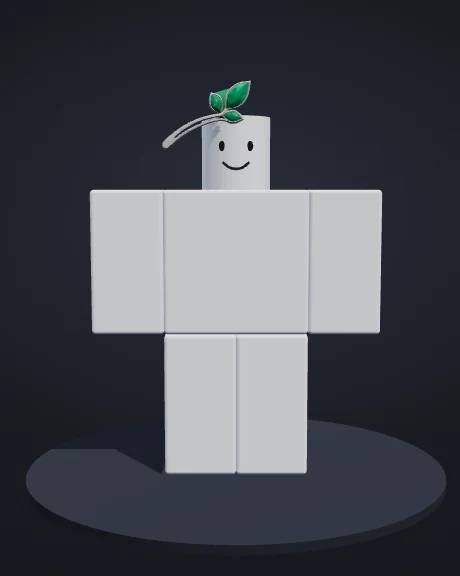
Roblox UGC Creator shows mesh and texture statistics with the preview. Use those measurements to understand the file before continuing your validation and editing in Studio.
Keep the concept, fitted GLB, or Studio package you need. Using this UGC creator, Roblox designers export their chosen model with its fitting changes for further work.
Open Roblox UGC Creator with text or a reference. Explore a concept, generate a textured model, then choose an attachment target and adjust its fit on the R6 avatar. Download the model or Studio package when you are ready to continue.
AI in Roblox UGC Creator requires an account and credits. A concept generation or revision costs 60 credits; 3D generation costs 2,200. New accounts receive 180 starter credits once for image work. Manual fitting, previewing, and downloading available results use no generation credits.
Yes. In this UGC creator, Roblox artists can supply a reference, develop a concept, and generate a textured model. Give Roblox UGC Creator a clear object and silhouette. Review the concept first, especially when your reference includes several objects or a busy background.
Yes. Roblox UGC Creator lets you revise an image before the 3D step. Describe a specific change, such as a simpler silhouette or different material, then inspect the result. Image revisions and model generations cost different amounts; check the operation before submitting.
Choose an attachment target and adjust position, rotation, and uniform scale. In this UGC creator, Roblox designers can inspect the fit on R6 from different angles. Use that view to adjust placement; it does not replace Studio attachment and wearing tests.
The roblox ugc creator tool prepares concepts, geometry, and exports; Roblox handles publishing. Roblox UGC Creator does not guarantee Marketplace approval. Check your imported model and current platform requirements before publishing. Studio import and wearing verification for this workflow is still pending.
Download a concept image, fitted textured GLB, or ZIP with Studio instructions. With this UGC creator, Roblox projects keep those checkpoints distinct. Roblox UGC Creator preserves fitting changes in the model export, while the concept stays a separate visual reference.
Roblox UGC Creator shows triangle, mesh, and texture statistics. Inspect them before exporting, then check current platform requirements in Studio. In this UGC creator, Roblox builders can see the geometry they receive while keeping final validation in their own workflow.
Open Roblox UGC Creator, explore a concept, and inspect the model in context. Refine the fit, then take the files into your next editing step.
Open Accessory Studio