Roblox GFX Maker for Character Scenes and Posters

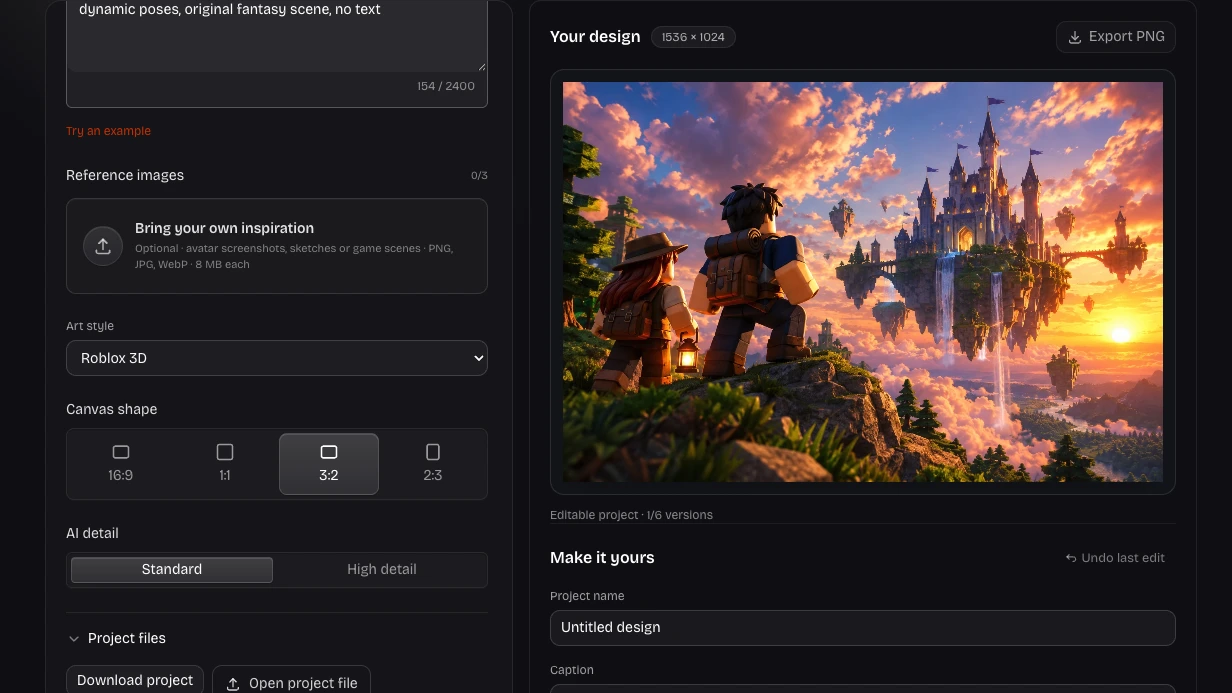
Roblox GFX Maker helps you create a character scene with a readable pose, setting and mood. Describe your idea, add references, then refine the image and export a finished PNG with your own edits.

Opening your workspace…

From a Floating Castle Idea to a GFX Scene

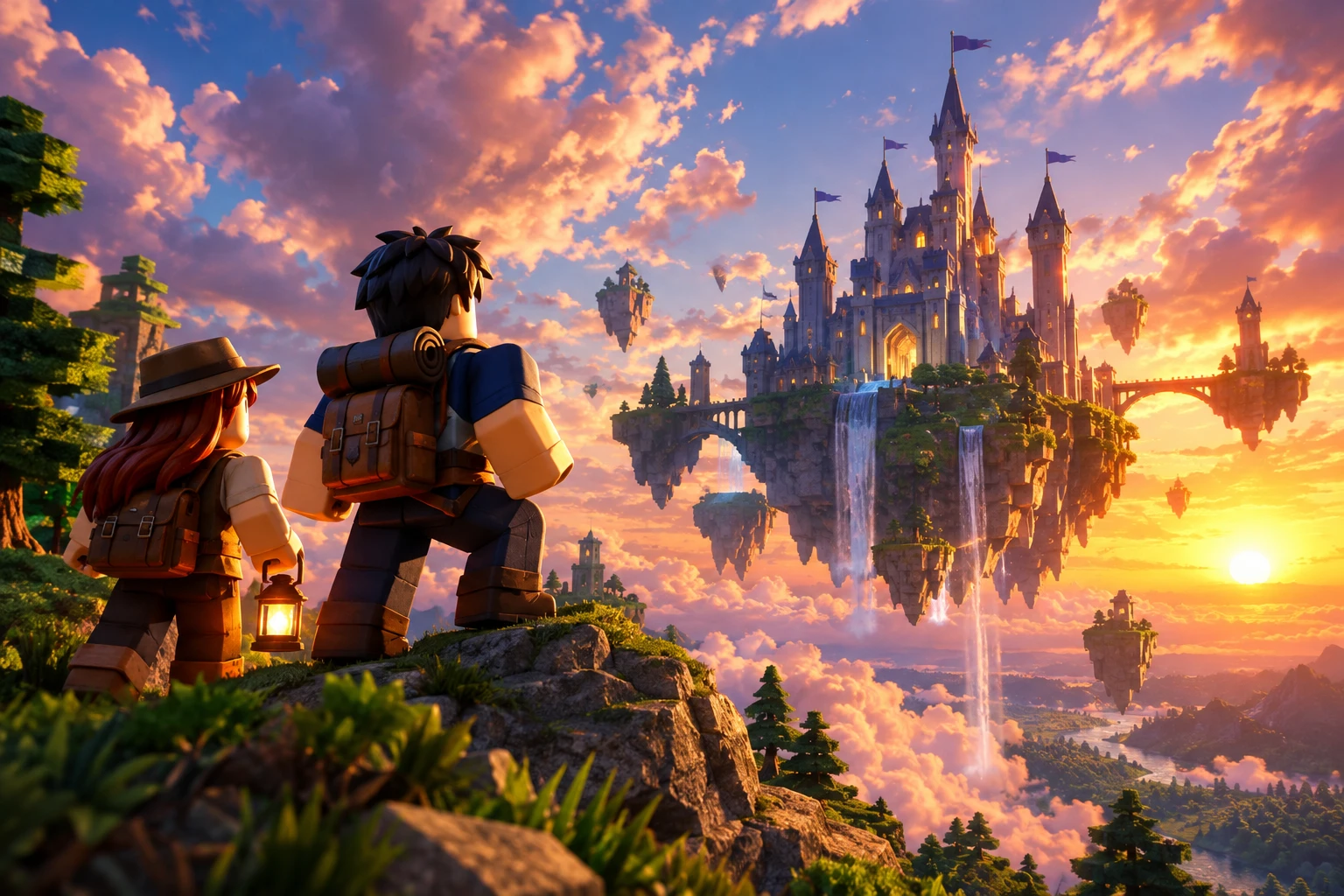
Two adventurers approaching a floating castle need a clear destination and coherent light. This recorded prompt and result show how the characters, sunset and environment fit together in a landscape illustration ready for further editing.

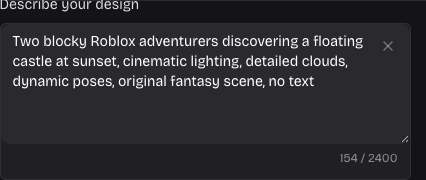
Original prompt
Recorded prompt describing two adventurers discovering a floating castle at sunset
Finished image
Two adventurers approaching a floating castle among sunset clouds

How to Use Roblox GFX Maker

Create Your Design

Describe the image you need

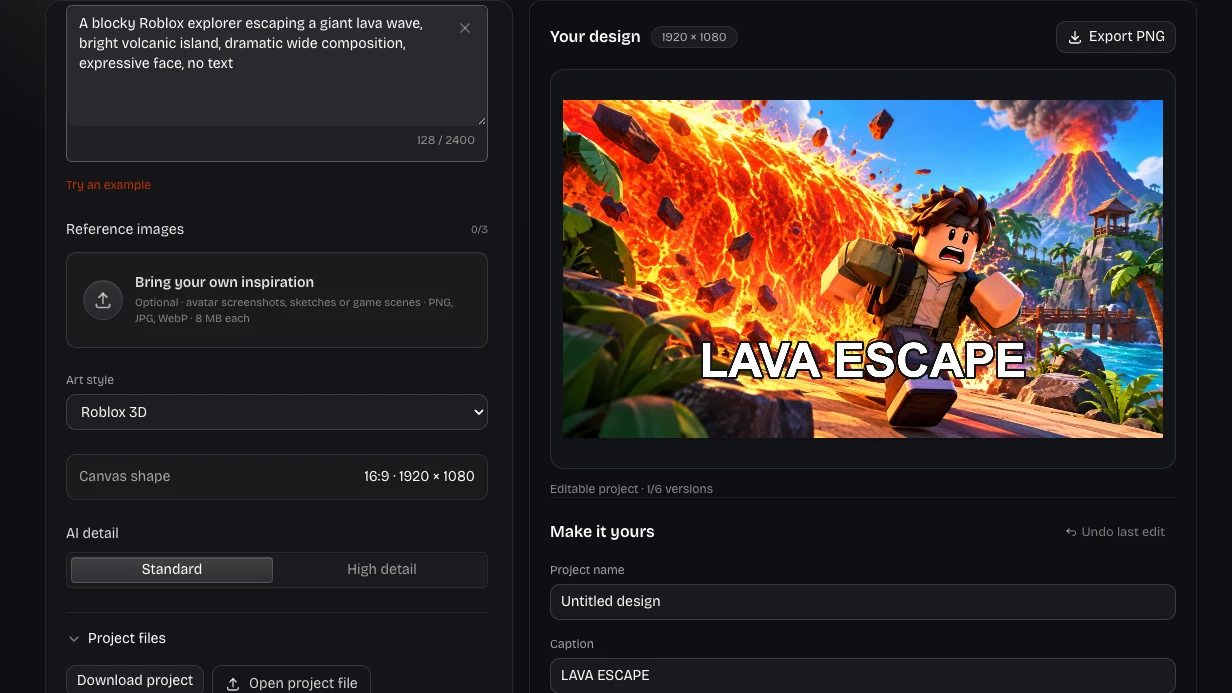
Start in Roblox GFX Maker with the main subject, setting and mood. Add up to three references to guide identity, colors or composition.

Generate, compare and refine

Choose a style and precision in Roblox GFX Maker. Open a finished result, compare versions and request a focused AI change when needed.

Finish your edits and export

Adjust the framing and lighting, add a separate caption, then export a PNG. Save an editable project copy to continue the work later.

Create and Refine with Roblox GFX Maker

Actual image editor with prompt, canvas and finishing controls

Direct the story in your scene

Give Roblox GFX Maker a specific moment rather than a collection of unrelated effects. Describe who is present, what they are doing and where the viewer should look, then add the atmosphere that supports that action.

Try This Workflow
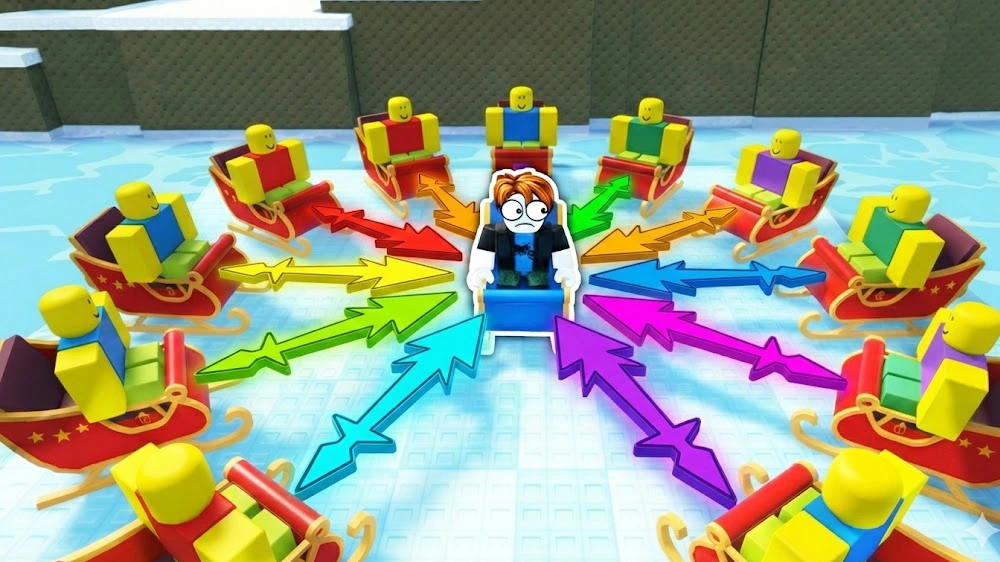
Illustrated Roblox action scene with a clear central character

Use references for a shared visual direction

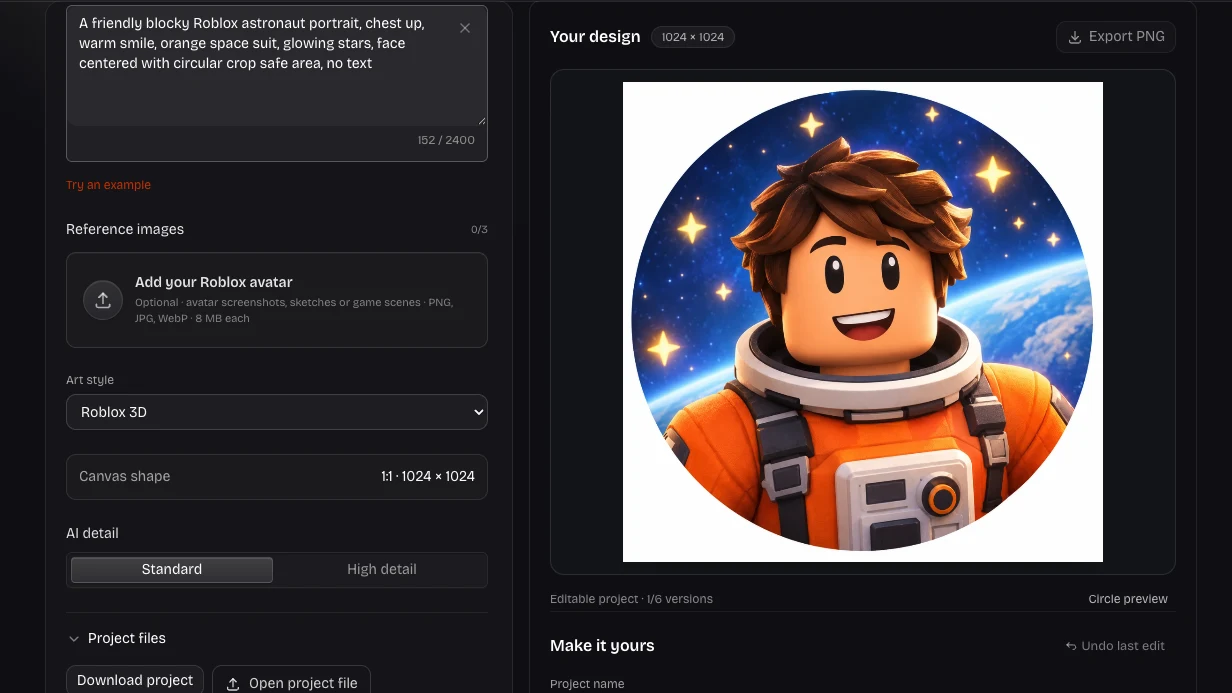
Roblox GFX Maker accepts up to three reference images for character details, colors or mood. Tell the prompt which elements to preserve and which to reinterpret, especially when several characters or a distinctive outfit need to remain recognizable.

Try This Workflow
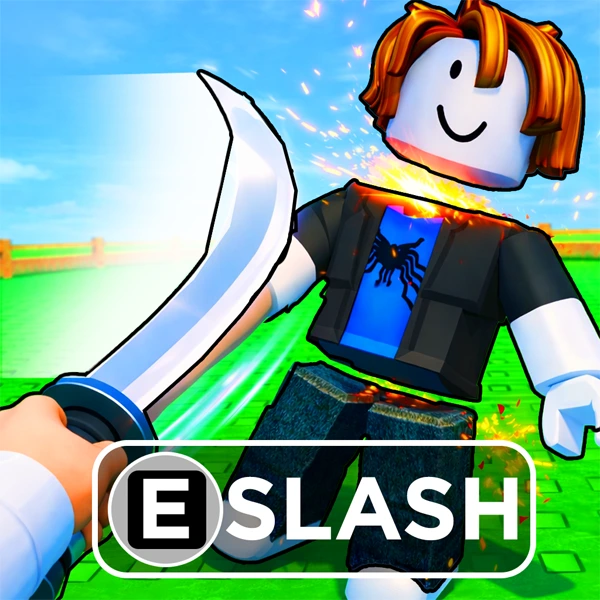
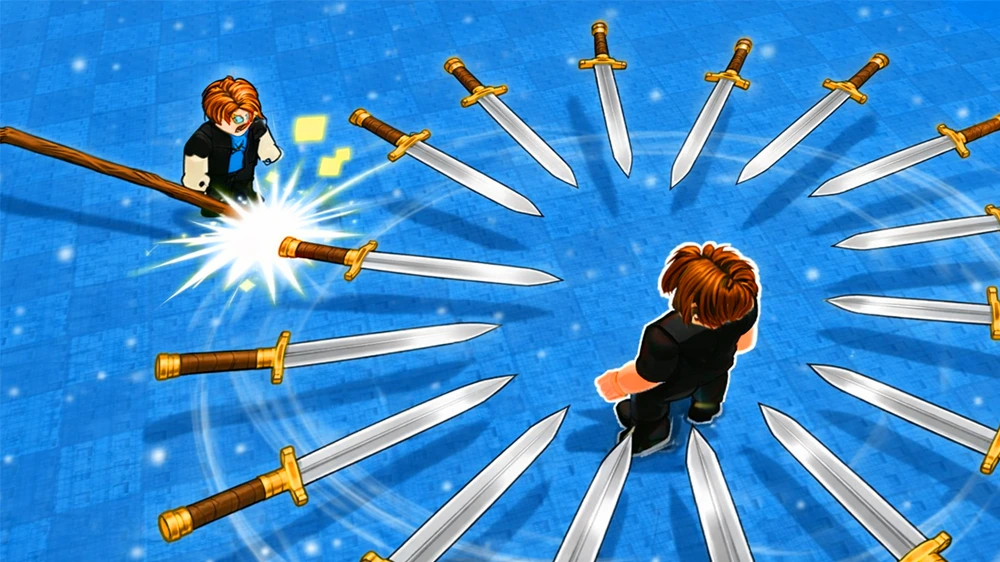
Wide blocky-character action scene with directional swords and bright blue lighting

Balance your characters and their surroundings

Use Roblox GFX Maker to keep the main pose readable while the environment supports it. A wide scene can show movement, a destination or a dramatic encounter, but competing props should not obscure the character or the moment you want to share.

Try This Workflow

Keep Creative Control with Roblox GFX Maker

Roblox GFX Maker combines an AI starting point with practical finishing controls. Keep the choices that work for your character scene or poster and preserve an editable version for the next update.

Make the subject recognizable

Give Roblox GFX Maker a clear subject and supporting details, then review the composition before choosing the image that represents your idea.

Keep your words editable

Your caption stays separate from the generated image. Change its wording, color, size or position without paying for another AI request.

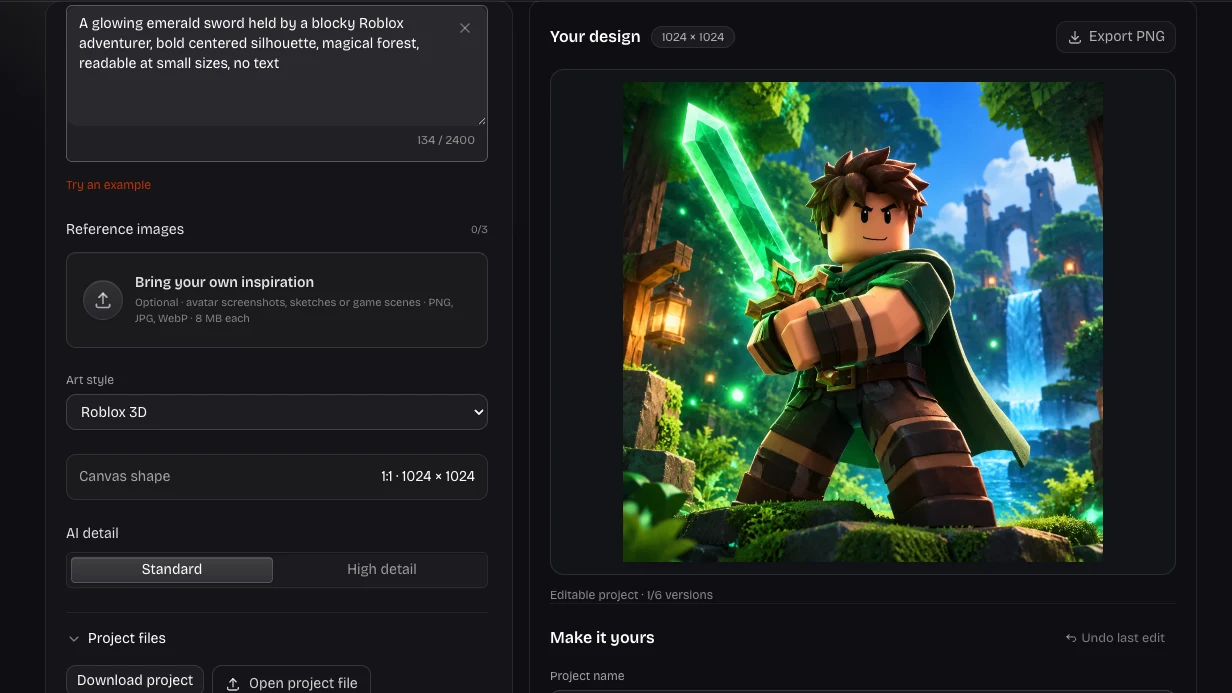
Blocky adventurer with recognizable hair and outfit against a bright game background

Return to an earlier direction

Roblox GFX Maker keeps up to six image versions in each project, with their caption, crop and lighting settings ready to restore.

Take your work with you

Download a finished PNG and an editable project backup. Signed-in creators can also save private project copies and reopen them on another device.

Roblox GFX Maker: Questions Before You Start

Roblox Shirt Maker brand mark

Create Your Next Character Scene Or Poster

Start with a clear idea in Roblox GFX Maker, refine the details that matter, and take a finished image into your next creative project.

Create Your Design